 Rebuild or move




 Romana
 Deutsch
 Français
A slow WooCommerce store usually has three or four specific causes, not a hundred small ones. This checklist walks through them in the order we check them on client stores: the Core Web Vitals on product and category pages, cart fragments, images, heavy plugins, hosting, and the line between page cache and cart.
Each section ends with checks you can run yourself. You do not need to fix everything. Fix what the field data says is failing.
Key takeaways
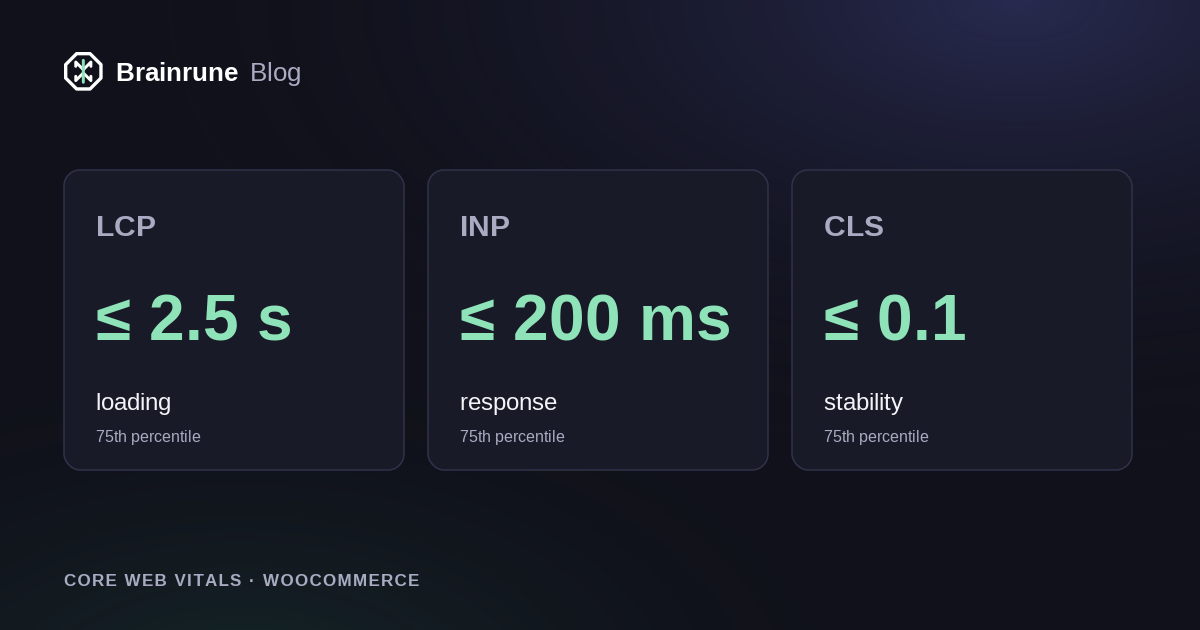
- Google’s targets are LCP within 2.5 seconds, INP of 200 ms or less and CLS of 0.1 or less, measured at the 75th percentile.
- Product and category pages fail for different reasons, so test both templates, not only the home page.
- Cart fragments, uncached pages and a slow server response cause most of the slowness we see on WooCommerce.
- Cache product and category pages for guests. Never cache cart, checkout or account pages.
- The LCP image should never be lazy-loaded.
What are Core Web Vitals for an online store?
Core Web Vitals are three Google metrics for real user experience: Largest Contentful Paint (LCP) for loading, Interaction to Next Paint (INP) for responsiveness and Cumulative Layout Shift (CLS) for visual stability. A page passes when at least 75% of real visits meet all three thresholds, measured separately on mobile and desktop.
| Metric | Good | What usually breaks it on WooCommerce |
|---|---|---|
| LCP | 2.5 s or less | Slow server response, large main product image, lazy-loaded hero |
| INP | 200 ms or less | Heavy JavaScript on filters, variation selectors, add to cart, chat widgets |
| CLS | 0.1 or less | Images without dimensions, late banners, cookie bars that push content, price and badge swaps |
The thresholds come from web.dev’s Web Vitals overview. Use field data from PageSpeed Insights or the Core Web Vitals report in Search Console first. Lighthouse scores are lab tests on one simulated device, and they move several points between runs.
Why are product and category pages slower than the home page?
Product and category pages run more queries and more scripts than a home page. A product page loads galleries, variation data, reviews and related products. A category page loads product grids, filters, prices and stock for every item. Both are often left out of page cache by mistake, so every visit hits PHP and the database.
Product pages
- The LCP element is usually the main product image. Serve it at the displayed size, in WebP or AVIF, and do not lazy-load it.
- Gallery sliders often hide the first image until JavaScript runs. Make sure the first image is in the HTML.
- Variable products with many variations ship a large JSON blob. Check the size of the variations form data.
- Review widgets, size guides and “people also bought” blocks from third parties add scripts that hurt INP.
Category pages
- The LCP element is often the first product image or a category banner. Give it
fetchpriority="high". - AJAX filters can cause slow interactions. Measure INP when you click a filter on a phone.
- Thumbnails without width and height attributes cause layout shifts as they load.
- Too many products per page means more queries and a heavier DOM. Twelve to twenty-four is usually enough.
Do WooCommerce cart fragments slow down a store?
They can. Cart fragments is a script that refreshes the mini cart through an AJAX request on page load. Since WooCommerce 7.8 it only loads where the cart widget appears or when a theme or plugin requires it. Many themes still require it on every page, so each uncached visit triggers an extra request to the server.
The WooCommerce team explains the change in their post on cart fragments best practices, noting that on heavily trafficked stores the old behavior could severely impact server load and responsiveness. To check your store:
- Open a product page in a private window and look in the browser’s Network tab for
wc-ajax=get_refreshed_fragments. - If it fires on every page, find which theme or plugin enqueues
wc-cart-fragments. - Replace the live mini cart with a count read from the
woocommerce_items_in_cartcookie, or load fragments only after the first add to cart. - Test that the cart count still updates after adding a product.
How should you optimize product images in WooCommerce?
Serve each image at the size it is displayed, in a modern format like WebP or AVIF, with width and height attributes set. Keep the first visible image out of lazy loading and give it high fetch priority. Regenerate thumbnails after changing image sizes, so WooCommerce stops sending oversized originals to phones.
Google’s guide to optimizing LCP is direct: never lazy-load the LCP image, and make sure the browser can find it in the initial HTML. Checklist:
- Upload originals at a sensible size before WordPress resizes them.
- Check that WooCommerce thumbnail sizes match your theme’s real grid widths.
- Use
srcsetso phones get small files. WordPress does this when sizes are registered correctly. - Set
loading="lazy"on images below the fold only. - Remove image sliders above the fold when a single image does the job.
Which plugins slow down WooCommerce the most?
The heaviest plugins are usually page builders loading assets on every page, sliders, live chat widgets, multiple tracking scripts, related product engines that run slow queries, and plugins that store large data in autoloaded options. The fix is rarely to remove everything. Measure first, then remove or limit what costs the most.
How to find them:
- Use Query Monitor on a staging copy to see slow database queries and which plugin runs them.
- Check the size of autoloaded options in
wp_options. Large autoload data slows every uncached request. - List third-party scripts in the browser’s Network tab, grouped by domain.
- Load scripts only where they are used. A contact form plugin does not need to run on product pages.
- Replace two plugins that do the same job with one.
How much does hosting affect WooCommerce speed?
Hosting sets the floor for every page. If the server takes over a second to send the first byte, LCP within 2.5 seconds becomes hard on mobile. Cached pages hide a weak server for guests, but cart, checkout and logged-in visits always hit PHP and the database, so they show the real server speed.
web.dev notes that a high TTFB can make a 2.5 second LCP challenging or even impossible. What to check with your host:
- A current, supported PHP version.
- A persistent object cache such as Redis or Memcached for database query results.
- Enough PHP workers for your traffic peaks, so checkout requests do not wait in a queue.
- HTTP/2 or HTTP/3, Brotli or gzip compression, and a CDN for static files.
- Server-side page cache, if your host offers it.
How do you cache WooCommerce pages without breaking the cart?
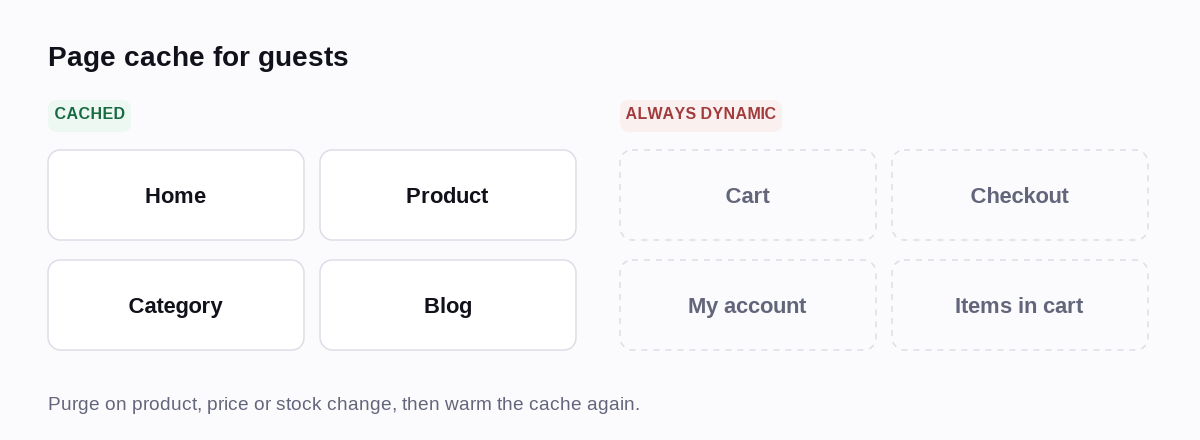
Cache full pages for guests on the home page, product pages and category pages. Exclude cart, checkout and my account pages, and skip the cache for visitors who have items in the cart or are logged in. WooCommerce sets cookies such as woocommerce_items_in_cart that your cache can use to decide.
| Page | Cache for guests | Notes |
|---|---|---|
| Home, product, category, blog | Yes | Purge on product, price or stock change |
| Cart | No | Always dynamic |
| Checkout and order received | No | Contains personal and payment data |
| My account | No | Logged-in only |
| Any page for a visitor with items in cart | No | Bypass on the cart cookie |
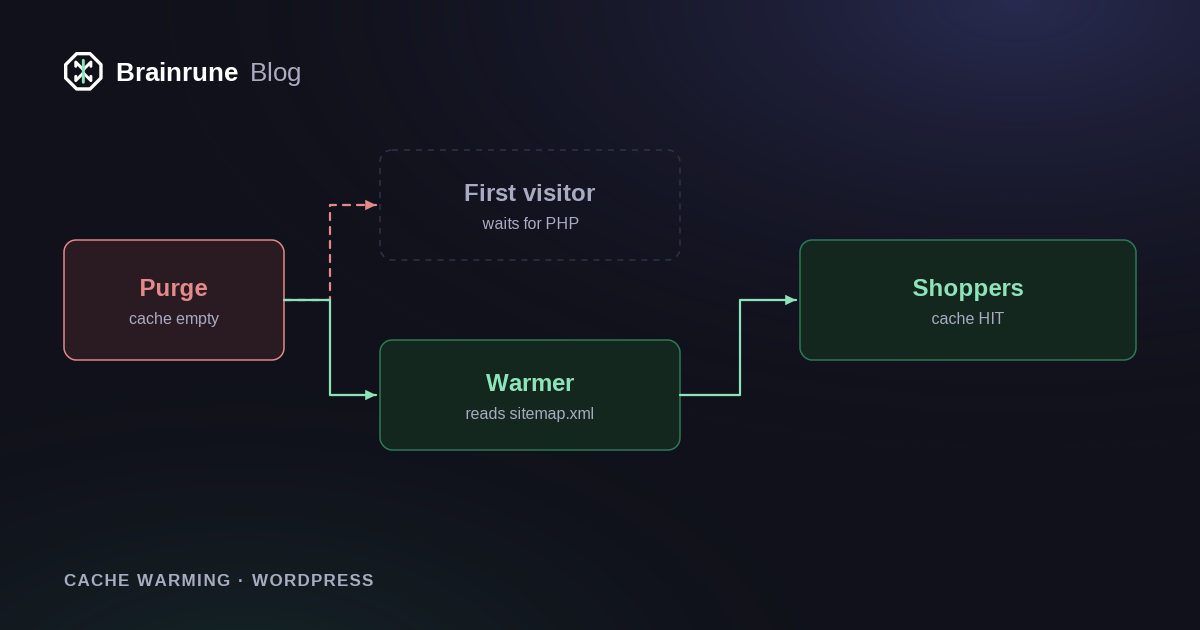
A cold cache is a quiet problem. After a purge, the first visitor to each page waits for the full PHP render. A cache warmer, such as our Uruz Cache Warmer, visits pages after a purge so shoppers land on cached copies.
WooCommerce speed checklist
- Field data checked for product and category templates, mobile and desktop.
- TTFB measured on cached and uncached pages.
- Cart fragments loaded only where needed.
- LCP image not lazy-loaded, sized correctly, with high fetch priority.
- All images with width and height attributes.
- Third-party scripts listed, unused ones removed, the rest delayed where safe.
- Autoloaded options checked and trimmed.
- Object cache enabled.
- Page cache on for guests, with cart, checkout and account excluded.
- Cache warmed after purges.
- INP tested by tapping filters, variations and add to cart on a real phone.
The INP article on web.dev explains how interactions are measured if your filters or variation selectors feel slow. If you would rather have someone go through this list on your store, start with our free store audit or see the WooCommerce speed optimization service.
Frequently asked questions
Is a PageSpeed score of 100 needed for good rankings?
No. Google uses Core Web Vitals field data, not the Lighthouse score. A store that passes LCP, INP and CLS for real users is in good shape even if the lab score is in the 70s or 80s.
Should I disable cart fragments completely?
Only if nothing on the page needs a live cart update. A safer path is to show the cart count from the WooCommerce cart cookie and load fragments after the first add to cart.
Why is my checkout slow when the rest of the store is fast?
Checkout cannot be cached, so it shows the real speed of your server, plugins and payment scripts. Look at PHP version, object cache, PHP workers and the scripts loaded by payment and shipping plugins.
Does a CDN fix a slow WooCommerce store?
A CDN speeds up static files like images, CSS and JavaScript. It does not speed up uncached PHP pages unless it also caches full HTML. A slow server response still needs fixing on the server.
How often should I check Core Web Vitals?
Check after every theme or plugin change, and look at the Search Console report monthly. Field data covers the last 28 days, so changes take a few weeks to show.