 Rebuild or move




 Romana
 Deutsch
 Français
Most WooCommerce stores connect to Google Merchant Center, see a wall of warnings and disapprovals, and fix them one product at a time. That works for ten products. It does not work for two thousand. Almost every feed error traces back to a handful of causes in how WooCommerce stores product data, and fixing the cause clears hundreds of items at once.
Key takeaways
- Most disapprovals come from five areas: identifiers, price and stock drift, images, shipping and business information.
- Never put invented or internal codes in the GTIN field. Use
identifier_existsonly when no real identifier exists.- Price and availability mismatches usually mean the feed is refreshed less often than the store changes.
- Google reads both your feed and the structured data on product pages. They have to agree.
- Misrepresentation is an account level problem, fixed on the website, not in the feed.
How does a WooCommerce product feed reach Google Merchant Center?
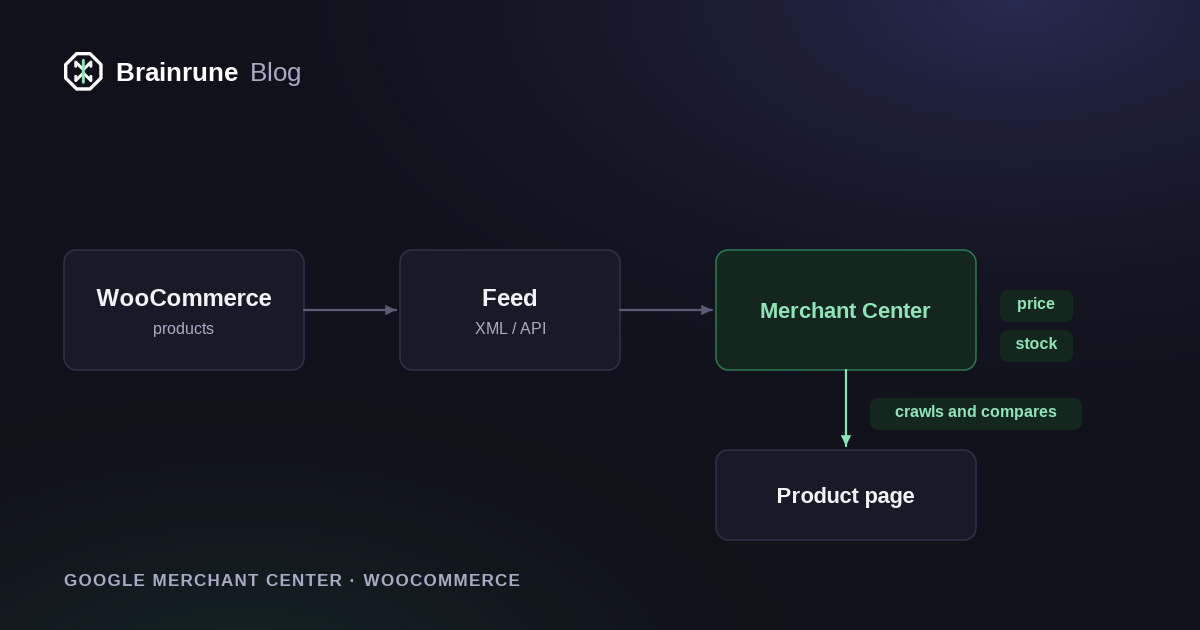
A WooCommerce product feed is a list of your products with Google’s attributes, such as id, title, price, availability, image link, GTIN and brand. A plugin either builds an XML or CSV file that Merchant Center fetches on a schedule, or pushes products through Google’s API. Google then compares that data with your product pages.
That second step is where many stores get surprised. Google does not trust the feed alone. It crawls the landing page, reads the visible price and the structured data, and flags the item when the two disagree. So a “feed problem” is often a website problem, and the fix belongs in WooCommerce, the theme or the SEO plugin.
Which Merchant Center errors are most common on WooCommerce?
The most common Merchant Center errors on WooCommerce stores are missing or invalid GTINs, a wrong identifier_exists value, price or availability mismatches, images with overlays or placeholders, missing shipping information and misrepresentation flags. The table maps each one to its usual cause and fix.
| Error in Merchant Center | Usual cause in WooCommerce | Fix |
|---|---|---|
| Missing or invalid GTIN | GTIN field empty, or filled with SKU or warehouse codes | Map a dedicated GTIN field with real manufacturer barcodes only |
| Incorrect identifier_exists | Set to “no” for all products to silence warnings | Set “no” only for custom or private label items |
| Mismatched price | Feed refreshed once a day, sale price scheduled, tax shown differently | Refresh more often, align tax display, fix structured data |
| Mismatched availability | Stock synced from an ERP more often than the feed | Trigger feed updates on stock change |
| Image too small or with overlay | Placeholder image, logos or price badges on photos | Clean product photos, no text, no placeholder |
| Missing shipping | No shipping settings in Merchant Center for the target country | Configure shipping to match checkout |
| Misrepresentation | Missing contact details, return policy or full costs | Fix the website pages, then request review |
How do you fix missing GTIN, MPN and brand?
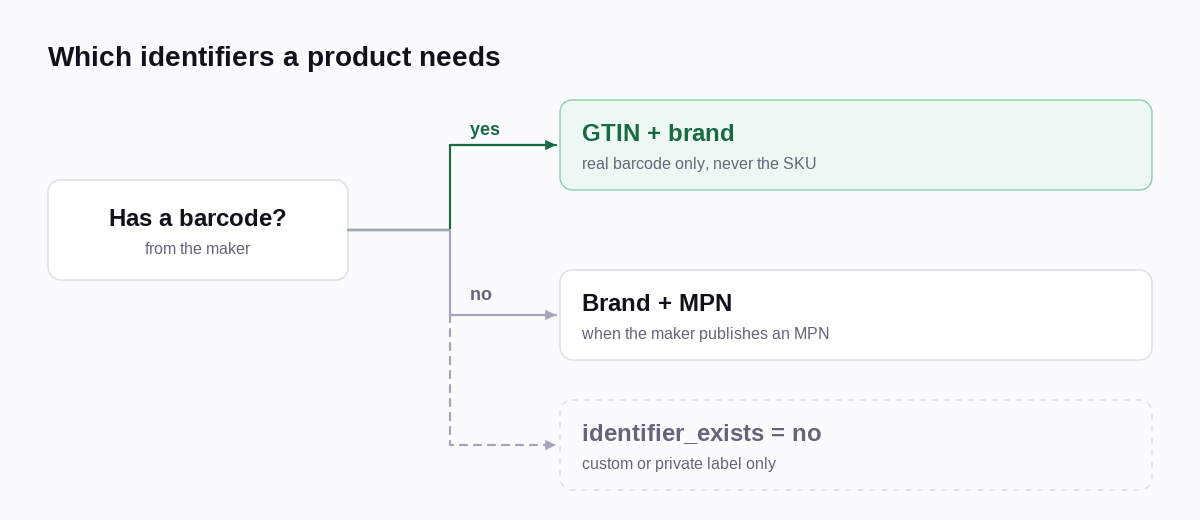
Fill the GTIN with the real barcode assigned by the manufacturer, add the brand, and add the MPN when the manufacturer publishes one. If a product has no GTIN, do not make one up. Google’s GTIN page says plainly: don’t guess or make up a value. Leave it empty and use the brand and MPN instead.
Google’s GTIN documentation accepts UPC (12 digits), EAN (13 digits), JAN, ISBN and ITF-14 codes. It also warns against GTINs in restricted ranges, which start with 02, 04 or 2, and coupon ranges starting with 05, 98 or 99. Those ranges are exactly where internal store codes live.
The SKU trap
WooCommerce has a SKU field by default and, in recent versions, a separate field for GTIN, UPC, EAN or ISBN. Many stores import barcodes from their ERP or supplier into whichever field is free. On stores we audit we often find in-house barcodes printed by the warehouse sitting in the GTIN field. They look like EAN-13 codes, but they are not registered to a manufacturer, and Google rejects them or, worse, matches them to the wrong product.
Brand on private label goods
If you sell your own products, your store or label name is the brand. Do not use the supplier’s name for a product you sell under your own label, and do not leave brand empty when a brand exists. A missing brand on a branded product is one of the easiest warnings to clear.
When should you set identifier_exists to no?
Set identifier_exists to no only for products that genuinely have no GTIN, such as custom made items, handmade goods, one-off pieces or products made before GTINs existed. Do not set it store wide to silence warnings, because Google checks for evidence that an identifier exists and flags products where it finds one.
The identifier_exists documentation describes the attribute as a way to say that unique product identifiers are not available for a product, and warns that a “no” on a product that does have a valid identifier can trigger a warning. A safe rule for feed plugins: if a GTIN or MPN is present, send nothing for identifier_exists; if neither is present and the product is your own or custom, send “no”.
Why do price and availability not match the website?
Price and availability stop matching when the store changes faster than the feed is refreshed. A daily feed cannot keep up with stock synced every few minutes, flash sales or scheduled sale prices. Different tax display between feed and page, currency switchers and variable products add more mismatches.
Check these in order:
- Refresh frequency. If stock or prices come from an ERP or supplier sync, the feed must update at least as often, or be pushed on change.
- Tax. The feed price must match what a shopper in that country sees, including tax where that market shows prices with tax.
- Sale prices. Send
sale_pricewith its effective dates, not a lowered regular price. - Variations. Each variation needs its own item with its own price, stock and image, grouped by
item_group_id. - Caching. A page cache that serves an old price makes Google see a price you have already changed. Purge the product page on price and stock updates.
Merchant Center can also correct some drift by itself. Its automatic item updates use landing page data, with structured data recommended, to update price, availability and condition. Google’s help page is clear that automations are not a replacement for regular data updates, so treat them as a safety net.
What image problems get products disapproved?
Products get disapproved for images that are too small, show the WooCommerce placeholder, or carry overlays such as watermarks, logos, price, shipping text or “sale” badges. Google wants a clean, unobstructed view of the product. Lifestyle photos are fine as additional images, but the main image should show the item clearly.
Google’s image_link help page lists a minimum of 500 x 500 pixels for all products starting January 31, 2027, recommends around 1500 x 1500 pixels for best results, caps files at 16 MB and rejects placeholders like “Coming soon” or “No image available”. If a theme adds badges to images with CSS, that is fine. If the badge is burned into the file, the file has to be replaced.
How should shipping be set up for Merchant Center?
Set shipping in Merchant Center’s shipping settings for each country you target, and make it match what checkout charges. Use the feed’s shipping attribute only for products that differ from the account rules, like oversized items. If a shopper sees free shipping in the ad and pays for it at checkout, expect a mismatch flag.
Free shipping thresholds, weight based rates and courier zones all have equivalents in Merchant Center. Keep them in one place in your head: when the store’s shipping zones change, the Merchant Center settings change the same day.
Do you need structured data if you already have a feed?
Yes. Google’s Product structured data documentation says that providing both structured data on web pages and a Merchant Center feed maximizes eligibility, and that some experiences combine both sources. The two must say the same thing: same price, currency, availability and identifiers.
The usual conflict on WooCommerce is two plugins printing Product markup: the theme and the SEO plugin, or the SEO plugin and a feed plugin. Google then reads two prices or two availability values. Keep one source of Product markup and check it with the Rich Results Test after every major plugin update.
What triggers a misrepresentation suspension?
A misrepresentation suspension is triggered when Google decides the website hides information shoppers need or misleads them about the business. Typical triggers on new stores are missing contact details, no clear return and refund policy, hidden fees, and a total price that is not shown before checkout.
Google’s misrepresentation policy lists, among others, presenting a false identity or contact information, not disclosing the total price including taxes and fees, and failing to disclose fees such as restocking fees before checkout. It also says accounts can be suspended without prior warning for egregious violations. The fix is on the site, not in the feed:
- A contact page with a real address, phone or email and company details.
- A return and refund page that matches what you actually do.
- Shipping costs and delivery times visible before checkout.
- Payment methods listed, with any extra fees stated.
- Secure checkout (HTTPS) and no broken pages in the purchase path.
Checklist before you request a review
- GTIN field contains only real manufacturer barcodes, no SKUs or internal codes.
- Brand set on every product; MPN where the manufacturer publishes one.
identifier_existsset to no only for custom or private label items without identifiers.- Feed refresh is at least as frequent as stock and price changes.
- Feed prices match the page, including tax and sale dates.
- One source of Product structured data, checked with the Rich Results Test.
- Main images clean, large enough, no placeholders or burned-in badges.
- Merchant Center shipping matches checkout for each target country.
- Contact, returns, shipping and payment information visible on the site.
Many of these issues are also technical SEO issues, which is why a technical SEO review and a feed review usually go together.
If you would rather not build the feed by hand, our Product Feed for WooCommerce plugin generates the Google Merchant Center feed from your products and updates it when stock or prices change.
Frequently asked questions
Can I use the WooCommerce SKU as the GTIN?
No. A SKU is your own code. A GTIN is a barcode registered to the manufacturer. Put real barcodes in a dedicated GTIN field and send the SKU as the item id or MPN only if it really is the manufacturer part number.
How long does Merchant Center take to re-check fixed products?
Feed changes are processed when the feed is next fetched or pushed, and items are re-crawled after that. Account level reviews for misrepresentation take longer. Fix everything first, then request one review.
Why does Merchant Center show a different price than my product page?
Usually because the feed is older than the page, the page cache serves an old price, tax is shown differently, or two plugins output conflicting structured data. Check them in that order.
Is it safe to set identifier_exists to no for all products?
No. Google checks for evidence that an identifier exists and flags products that have one. Use no only for custom, handmade or private label products without a GTIN or MPN.
Do I need a paid plugin to send a WooCommerce product feed?
Not always. Google’s own WooCommerce extension and several free plugins can send a feed. The real work is the data: correct identifiers, refresh timing and matching structured data.
Get the feed and the store to agree
If your feed depends on stock or prices from an ERP, supplier file or invoicing system, the timing between the two is usually the real fix. We build and repair those connections as part of WooCommerce integrations. If you are not sure where the errors come from, start with a free store audit.