 Rebuild or move




 Romana
 Deutsch
 Français
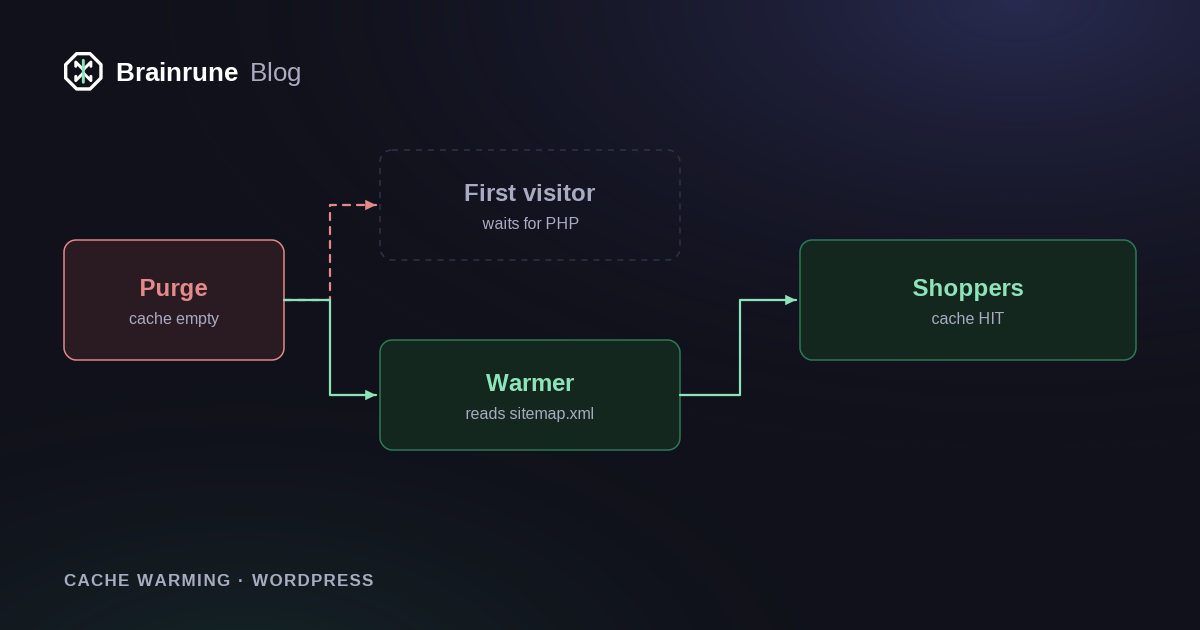
You clear the cache, open the shop to check a change, and the homepage takes three or four seconds to appear. Reload it and it is instant. Nothing is broken. The first request simply paid the cost of building the page, and every cached page on a WordPress store has to be built by somebody. Cache warming makes sure that somebody is a background process, not a customer.
Key takeaways
- A page cache only helps after a page has been generated once. Until then, every request runs PHP and database queries.
- WooCommerce stores purge often: product edits, stock changes, plugin updates and expiry all empty parts of the cache.
- A cache warmer reads your sitemap and requests each URL so the cache is full before visitors arrive.
- If your cache keeps separate mobile and desktop copies, you have to warm both.
- Pace matters more than speed. A warmer that overloads the server makes the store slower, not faster.
What is cache warming?
Cache warming means requesting your pages on purpose, right after the cache is emptied, so the server builds and stores each page before a real visitor asks for it. The visitor then receives a stored copy instead of waiting for WordPress, WooCommerce and the database to assemble the page from scratch.
A page cache, whether it lives in a plugin, in LiteSpeed, in Nginx or in a CDN, is passive. It saves what it was asked for and nothing else. If nobody has requested a category page since the last purge, there is nothing stored for it. The warmer closes that gap by playing the role of the first visitor.
Why is the first visit after a purge slow?
The first visit after a purge is slow because it is a cache miss. The server has to start PHP, load WordPress and every active plugin, run the product and menu queries, render the theme and only then send the first byte. A cached hit skips all of that and returns a file that is already built.
What happens on a cache miss
On a typical WooCommerce category page a miss means dozens of database queries, cart fragment logic, price calculations for each product shown and whatever extra work the theme and plugins add. On shared hosting that work competes with other sites on the same machine, which is why the same page can take very different times from one hour to the next.
Google’s guidance on Time to First Byte says good TTFB values are 0.8 seconds or less and poor values are greater than 1.8 seconds. A cached page usually lands well inside the good range. An uncached WooCommerce page on modest hosting often does not. Because TTFB comes before everything else, a slow first byte pushes back Largest Contentful Paint too.
Who actually gets the cold page
On a busy store the homepage is warm again within seconds, because real traffic rebuilds it. The problem sits in the long tail: deeper categories, older products, brand pages, the second page of a listing. Those are exactly the pages that search engines and ad clicks land on, and they can stay cold for hours.
What purges the cache on a WooCommerce store?
On a WooCommerce store the cache is purged by product edits, stock and price changes, new orders that change stock, plugin, theme and core updates, manual “purge all” clicks and the normal expiry time of each cached page. Each event empties a different set of pages, and some empty all of them.
| Event | What usually gets purged | How often on a live store |
|---|---|---|
| Product saved in admin | The product, its categories, tags, shop page, sometimes the homepage | Daily |
| Stock or price change (order, import, ERP sync) | The product and, depending on settings, its categories | Many times a day |
| Plugin, theme or WordPress update | Often the whole cache | Weekly or monthly |
| Manual “purge all” | Everything | Whenever someone debugs a change |
| Cache lifetime (TTL) expires | Each page on its own schedule | Continuously |
LiteSpeed Cache documents these controls in its cache settings documentation: auto purge rules decide which related pages are emptied when a post is updated, a WooCommerce option decides how aggressively to purge when stock changes, and “Purge All on Upgrade” empties everything after a plugin, theme or core update. Other cache plugins have similar rules under different names. The pattern is the same: correct content needs frequent purges, and frequent purges mean cold pages unless something refills them.
How does a cache warmer work?
A cache warmer reads a list of URLs, usually your XML sitemap, and requests each one the way a browser would. Every request that misses the cache causes the server to build the page and store it. When the pass finishes, the pages in the sitemap are cached and the next real visitor gets a hit.
The sitemap is the natural source because it already lists the pages you want indexed and nothing else. The sitemaps.org protocol also gives each URL an optional lastmod date, defined as the date of last modification of the page, which a warmer can use to refresh recently changed pages first. A single sitemap file can hold up to 50,000 URLs, so larger stores split it into an index of several files, and a good warmer follows the index.
The LiteSpeed Cache crawler works this way: it parses the sitemap, saves it to the database and then requests the pages one after another. The catch is that many shared hosts disable that crawler at server level, so on those plans the cache only fills when visitors fill it.
Why do mobile and desktop need separate warming?
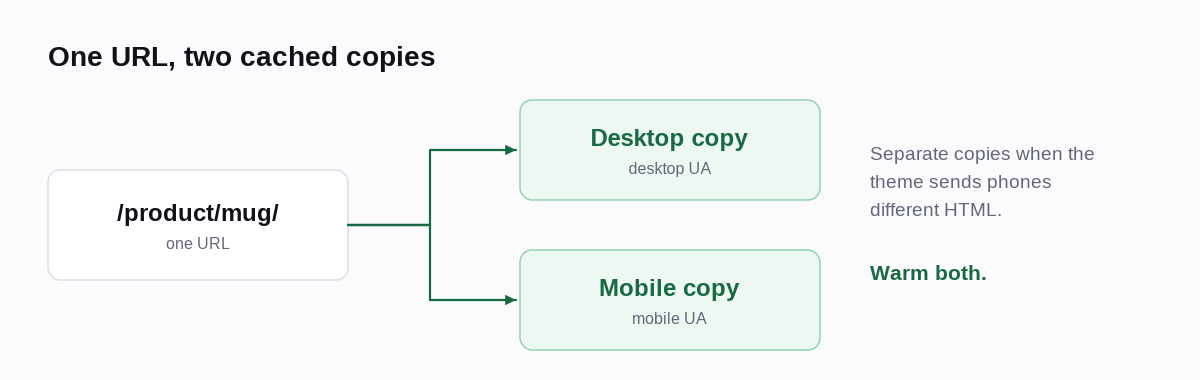
Mobile and desktop need separate warming when your cache stores a different copy for each device. In that setup, warming with a desktop user agent fills only the desktop copy. Phones, which are most of the traffic on many stores, still land on cold pages until a phone visitor builds each one.
Caches decide which copy to serve with a cache key. As MDN’s HTTP caching guide explains, the Vary header can make a cache key responses on a request header as well as the URL. LiteSpeed’s “Cache Mobile” option does the same thing for devices: it keeps separate cached versions for mobile and desktop views, and its documentation notes that this adds cache varies and more crawling work.
You need separate mobile copies when the theme sends different HTML to phones, for example a different header, menu or product grid. If the theme is fully responsive and serves one HTML for everyone, one copy is enough. Check before you switch the option on, because doubling the cache also doubles the warming work.
How fast should a cache warmer crawl?
A cache warmer should crawl slowly enough that the store stays fast for real visitors while it runs. In practice that means one request at a time, a pause between requests, backing off when the server answers slowly or with errors, and running the full pass in a quiet window at night.
Every warming request on a cold page is a full, uncached page build. A warmer that fires ten requests in parallel on shared hosting can push CPU to the limit and slow down checkout for the people buying at that moment. LiteSpeed’s crawler has a server load limit for this reason: when the load average reaches it, the crawler stops.
- Sequential requests are safer than parallel ones on small plans.
- Adaptive pacing slows down when response times rise.
- Respect
Retry-Afterand 429 or 503 answers instead of retrying at once. - A quiet window, such as the early morning hours, for the full pass.
- Small, targeted runs after a single product update instead of a full site pass.
Which pages should you warm first?
Warm the pages that people land on: the homepage, main categories, best-selling products and any page used in ads or email campaigns. Leave out pages that are never cached for logged-out visitors, like cart, checkout and my account, and skip filter and sort URLs that create endless variations.
The order matters most right after a full purge. A pass through a 5,000 product sitemap at a gentle pace takes time, so the pages that bring revenue should be done in the first minutes, not the last.
Cache warming setup checklist
- Confirm a page cache is active and returns a hit header on a second request.
- Check whether your cache keeps separate mobile copies, and warm both if it does.
- Point the warmer at the sitemap index, not a single child sitemap.
- Exclude cart, checkout, my account and filtered or sorted URLs.
- Set a pace with one request at a time and a pause between requests.
- Schedule the full pass in a low-traffic window.
- Trigger a short run for the changed product and its categories after an edit or sync.
- Set up an alert if many pages come back cold or with errors.
How do you check that the cache is actually warm?
Request a page twice and read the response headers. Most caches add a header that says hit or miss, for example x-litespeed-cache: hit, x-cache: HIT or cf-cache-status: HIT. If the first request after warming already shows a hit, the warmer did its job.
Repeat the test with a phone user agent if you cache mobile separately. A common mistake is checking only from a desktop browser, seeing hits everywhere and missing that the mobile copy is still empty. On stores we maintain this is the most frequent reason for “fast on my laptop, slow on my phone” reports. If the numbers still look wrong after warming, the slow part may be outside the page cache, which a WooCommerce speed review can separate out.
Frequently asked questions
Does cache warming help SEO?
Indirectly. Googlebot and real visitors get cached pages with a lower Time to First Byte, which supports better page experience metrics. Warming does not change rankings on its own, and it does not replace fixing slow templates or heavy plugins.
Will a cache warmer slow down my server?
It can if it crawls too fast, because each request on a cold page is a full page build. Use one request at a time, a pause between requests, back off on slow responses and run the full pass at night.
Do I need a cache warmer if I use a CDN?
Usually yes. The CDN edge also needs a first request per page and location, and the origin behind it still builds pages on a miss. Warming the origin cache keeps those misses short.
How often should the cache be warmed?
Run a full pass after any large purge, such as a plugin update, and on a schedule a little shorter than your cache lifetime. After single product edits, warm only the product and its categories.
Should I warm cart and checkout pages?
No. Cart, checkout and my account are personal pages and are excluded from page caching for good reason. Warming them only adds load.
A free warmer for WordPress
If your host has turned off its built-in crawler, or you cache mobile and desktop separately, Uruz Cache Warmer warms both copies from your sitemap, with adaptive pacing and a quiet window. It is free on WordPress.org. For ongoing care of cache, updates and speed, see WooCommerce maintenance.