 Rebuild or move




 Romana
 Deutsch
 Français
Moving a store from Shopify to WooCommerce is mostly a data job. Products, customers and orders can all be moved with the right tools. Rankings are the part people lose, and they lose them for one boring reason: old URLs stop working and nobody tells Google where the pages went.
This guide is the process we follow when we migrate a store. It covers the redirect map, the Shopify URL patterns you have to handle, what happens to customer accounts and past orders, and the checks to run in Search Console in the weeks after launch.
Key takeaways
- Every old Shopify URL that has traffic or links needs a one-to-one 301 redirect to its closest WooCommerce page, not to the homepage.
- Shopify uses fixed paths like
/products/and/collections/. Decide early whether you keep them in WooCommerce or redirect them.- Customer passwords do not move. Plan a password reset email for launch day.
- Import past orders with customer emails switched off.
- Watch the Page indexing report and your 404 logs for at least a month after launch.
Why do stores lose rankings after a Shopify to WooCommerce migration?
Most ranking drops come from broken URLs, not from WooCommerce itself. When product and category addresses change and the old ones return 404 errors, Google drops those pages and the links pointing at them stop counting. A complete 301 redirect map, launched on the same day as the new store, prevents most of the damage.
The other causes are smaller but real: product descriptions shortened during import, missing title tags and meta descriptions, images without alt text, and internal links that still point at old Shopify paths. A redesign at the same time as the platform change makes the drop harder to diagnose, because you can no longer tell which change caused it.
If you can, move the platform first and redesign later. Keep the same domain, the same product names and the same category structure for the first weeks. Fewer variables means faster recovery.
What does the Shopify URL structure look like?
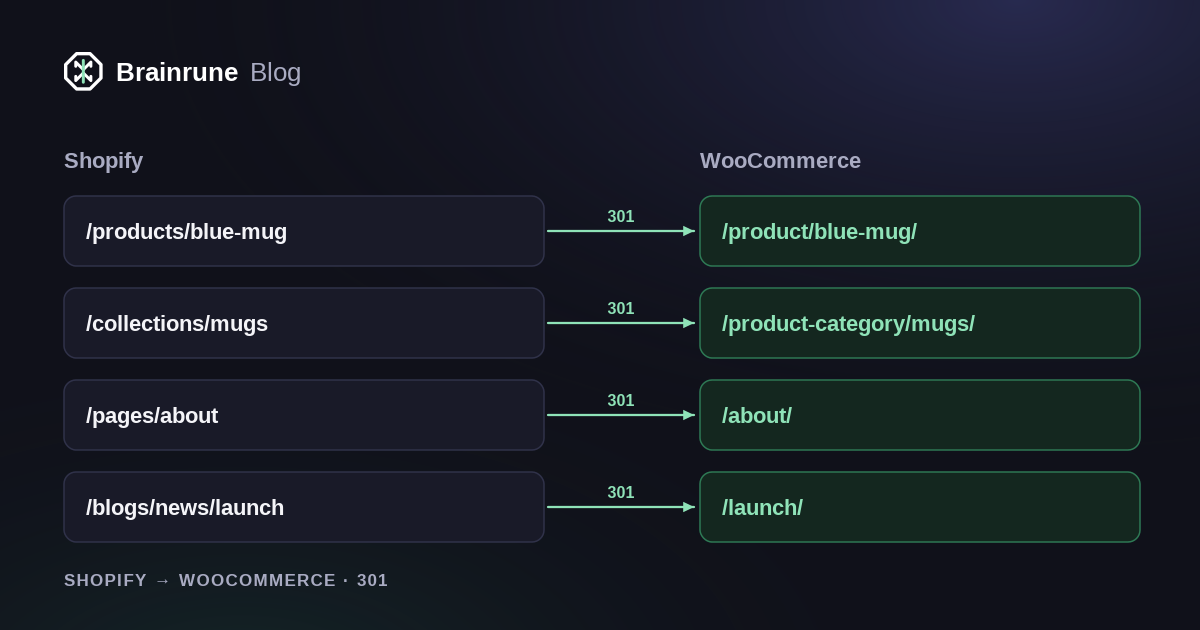
Shopify uses fixed path prefixes you cannot change: products live under /products/, categories under /collections/, static pages under /pages/ and blog posts under /blogs/ followed by the blog name. WooCommerce defaults to /product/ and /product-category/, so nearly every commercial URL changes unless you plan for it.
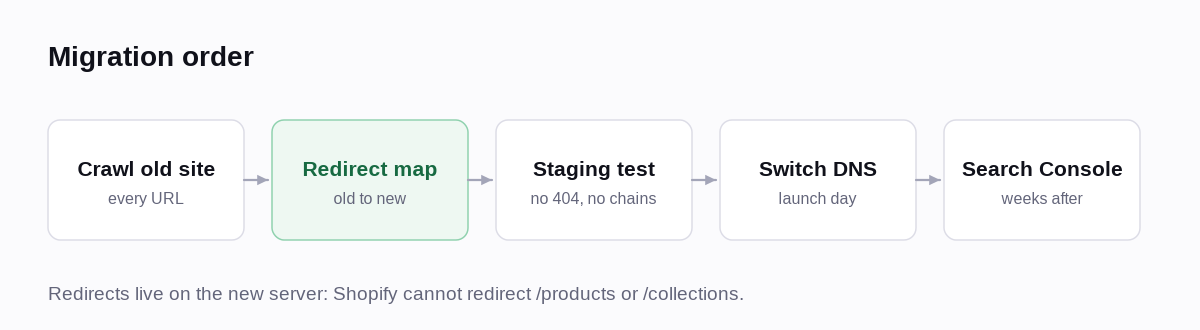
Shopify’s own help center confirms that /products, /collections and /collections/all are fixed paths you cannot redirect inside Shopify (Shopify Help Center, URL redirects). That is why the redirects have to live on the new WooCommerce server.
| Shopify URL | WooCommerce default | What to watch |
|---|---|---|
/products/blue-mug |
/product/blue-mug/ |
Keep the same handle as the slug |
/collections/mugs |
/product-category/mugs/ |
Nested categories add the parent to the path |
/collections/mugs/products/blue-mug |
/product/blue-mug/ |
Same product reachable under many collections |
/products/blue-mug?variant=123 |
/product/blue-mug/?attribute_pa_color=blue |
Usually safe to redirect to the parent product |
/pages/shipping |
/shipping/ |
Pages move to the root |
/blogs/news/spring-guide |
/spring-guide/ or /blog/spring-guide/ |
Depends on your permalink setting |
Keep the Shopify paths or change them?
WooCommerce lets you set a custom product base and category base under Settings, Permalinks. You can set them to products and collections and keep most URLs identical. That reduces the number of redirects. The trade-off is that you carry Shopify naming forever. Both options work. What matters is that you decide before import, not after launch.
How do you build a 301 redirect map?
List every old URL that matters, pair each one with the closest new URL, and load the pairs as server-side 301 redirects. Google’s site move guide says to map each old URL to its new counterpart, avoid sending many unrelated pages to the homepage, and keep redirects for at least one year (Google Search Central).
A 301 is a permanent redirect, and Google treats it as a strong signal that the target should become the canonical URL (Google Search Central, redirects). A 302 does not carry that signal, so do not use temporary redirects for a migration.
Where to collect old URLs:
- The Shopify sitemap at
/sitemap.xmland its child sitemaps for products, collections, pages and blogs. - The Shopify admin export of existing URL redirects, which you can download as CSV.
- Search Console, Performance report: every page that received clicks in the last 16 months.
- Your backlink tool of choice, for pages that have external links.
- Analytics landing pages, to catch old campaign URLs that still get visits.
Put everything in one sheet with two columns: old path and new path. Remove duplicates, strip tracking parameters, and fill the gaps by hand for products you renamed or merged. Then load the list into a redirect plugin or the web server config. Test a sample of 50 to 100 rows with a crawler before DNS changes, and again right after.
What about products you are not bringing over?
Redirect discontinued products to the closest category or a direct replacement. If there is no sensible match, a 410 or a helpful 404 page is better than a redirect to the homepage, which Google tends to treat as a soft 404 anyway.
What happens to customers and their passwords?
Customer records move cleanly: names, emails, addresses, phone numbers and tags can be exported from Shopify and imported into WooCommerce. Passwords do not move. Shopify stores them encrypted and does not hand them over, so every customer has to set a new password on the new store.
Shopify’s own help center makes the same point in the opposite direction: customer passwords from another store cannot be imported into Shopify through a CSV, because they are encrypted. Plan for it:
- Import customers without sending WooCommerce “New account” emails.
- On launch day, send one plain email explaining the move, with a direct link to the lost password page.
- Make the login form say clearly that returning customers need to reset their password once.
- Keep marketing consent as its own field. A customer who was not subscribed on Shopify should not become subscribed on WooCommerce.
How do you move historical orders?
Historical orders need the Shopify Admin API or a migration service, because WooCommerce’s built-in CSV tool only imports products. Import orders after customers so each order links to the right account, keep the original order numbers, and switch off all WooCommerce customer emails before the import starts.
The WooCommerce product CSV importer handles products, variations, images by URL and custom meta, but not customers or orders (WooCommerce documentation). For orders, the common options are a paid migration service, a dedicated import plugin, or a custom script against the Shopify API.
Things that are easy to miss:
- Order numbers. Customers quote them in support emails. Keep the Shopify numbers, and start new WooCommerce orders above the last one.
- Statuses. Map fulfilled orders to Completed and refunded ones to Refunded, without triggering stock changes.
- Emails. One forgotten setting can send thousands of “Your order is complete” messages for orders placed two years ago.
- Gift cards, subscriptions and reviews. These usually live in Shopify apps, each with its own export. List them separately.
Migration checklist before you switch DNS
Run the new store on a staging domain that is blocked from indexing until launch. Before you point the domain at WooCommerce, check every item below.
| Area | Check |
|---|---|
| Products | Counts match, variants and prices correct, descriptions complete, images with alt text |
| Categories | Same names and hierarchy, category descriptions copied |
| SEO fields | Title tags and meta descriptions imported for products, categories and pages |
| Redirects | Full map loaded, sample tested, no chains, no redirects to the homepage |
| Customers | Imported silently, consent preserved, reset email ready |
| Orders | Numbers preserved, statuses mapped, emails off during import |
| Checkout | Test orders paid with every payment method and shipping zone |
| Tracking | Analytics and ad pixels firing on the new checkout |
| Indexing | Staging noindex removed on launch, robots.txt allows crawling, XML sitemap live |
If you want a second pair of eyes on this list before launch, our free store audit covers indexing, redirects and tracking on the new setup.
What should you check in Search Console after launch?
Submit the new XML sitemap on launch day, then watch the Page indexing report, the Performance report and your server logs for 404 errors. If the domain stays the same, you do not need the Change of address tool, which only applies when you move to a different domain or subdomain.
The same Google site move guide confirms that Change of address is only for domain or subdomain changes, not for path changes on the same domain. A typical post-launch routine:
- Day 1: submit the sitemap, inspect five or six key URLs with URL Inspection, request indexing for the homepage and top categories.
- Week 1: check the 404 log daily and add redirects for anything that slipped through. Check that old URLs return a single 301, not a chain.
- Weeks 2 to 4: compare clicks and impressions for your top 50 pages against the same period before launch. Small dips and reshuffles are normal while Google recrawls.
- Month 2 and later: look for pages that stay “Crawled, currently not indexed” and fix their content or internal links.
On stores we have migrated, the stores with a complete redirect map usually settle within a few weeks. The ones that lose traffic for months almost always have gaps in the map or changed the content at the same time. For a deeper technical review after the move, see our WooCommerce technical SEO service.
Plan the move before you move the data
A Shopify to WooCommerce migration goes well when the URL decisions are made first and the data import comes second. Build the redirect map, decide on permalinks, prepare customers for the password reset, and keep emails off while orders import. If you would rather hand the whole move to someone who has done it before, our WooCommerce migration service covers the redirect map, data and post-launch checks.