 Rebuild or move




 Romana
 Deutsch
 Français
“Maintenance” on a WordPress site can mean anything from clicking Update all once a month to a real process with staging, tested backups and monitoring. Both get sold under the same name. The difference shows up on the day an update breaks checkout.
This article lists what a WordPress maintenance plan should include if it is going to protect a site that makes money, how often each task should run, and what does not belong in a maintenance plan at all. It is written from the side of the people who do the work, so you can use it to compare offers or to build your own routine.
Key takeaways
- Updates should be tested on a staging copy before they reach the live site, especially on WooCommerce stores.
- A backup only counts if it is stored off-site and someone has restored it at least once.
- Uptime and security monitoring should alert a person, not just write to a log.
- Database cleanup and a short monthly report are part of the job.
- New features, redesigns and content work are separate projects, not maintenance.
What is a WordPress maintenance plan?
A WordPress maintenance plan is a recurring service that keeps a site updated, backed up, monitored and fast, on a fixed schedule. A good plan covers core, plugin and theme updates tested on staging, off-site backups with tested restores, uptime and security monitoring, database cleanup, and a monthly report that shows what was done.
The goal is boring on purpose: nothing breaks, and when something does, it is noticed in minutes and fixed from a known good state. Plans differ in how many sites they cover, response times and support hours. The tasks below are the ones that should be in every plan, whatever the price.
Why does a WordPress site need ongoing maintenance?
WordPress sites depend on many third-party plugins, and most security problems are found there. Patchstack counted 11,334 new vulnerabilities in the WordPress ecosystem in 2025, with 91% of them in plugins and only six in WordPress core. Each plugin you run needs updates, and each update can change how the site behaves.
Those numbers come from Patchstack’s State of WordPress Security in 2026 report. The practical meaning is simple: a site that is not updated becomes easier to attack over time, and a site updated without testing becomes easier to break. Maintenance is the process that sits between those two risks.
How should updates be handled?
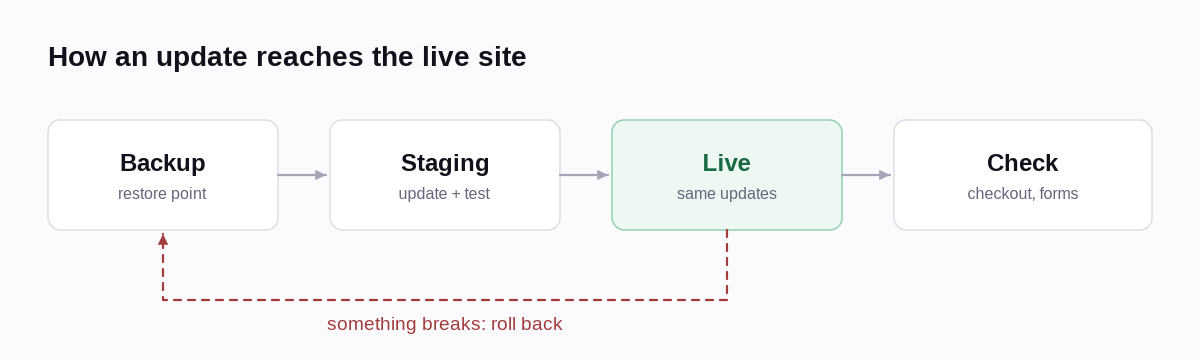
Updates should go to a staging copy first, be checked there, and only then be applied to the live site. On a store, testing means placing a real test order with each payment method. WooCommerce’s own update guide says to make a current backup, test on staging whenever possible, and not test updates directly on production.
The WooCommerce update guide also recommends checking each extension’s “Tested up to WooCommerce version” value before a major update. A solid update routine looks like this:
- Refresh staging from the live site so it matches production.
- Apply core, plugin and theme updates on staging, a few at a time for big releases.
- Check the pages that make money: homepage, a category, a product, cart, checkout, account, and the contact form.
- Read the PHP error log and the browser console for new errors.
- Take a fresh backup of the live site, then apply the same versions there.
- Repeat the key checks on live and note the versions in the log.
Should updates run automatically?
Minor WordPress core security releases are usually safe to auto-install. Major plugin updates on a store are not, especially for payment gateways, the theme, page builders and WooCommerce itself. A reasonable split: security patches go out quickly after a short check, feature releases wait for the next staging cycle.
What makes a backup actually useful?
A useful backup includes both the database and the files, is stored somewhere other than the server it protects, keeps several versions, and has been restored at least once to prove it works. A backup that lives only on the same hosting account disappears with the account, the server or the hacked files.
The WordPress handbook on backups suggests weekly backups for small sites and daily ones for busy sites, keeping several recent copies in different locations. For a store with daily orders, we treat daily as the minimum and add a backup right before every update.
- Off-site storage: a separate cloud bucket or backup service, with its own credentials.
- Retention: enough copies to go back before a problem that was noticed late, for example 30 days.
- Restore test: restore a backup to a staging site every quarter and confirm the site loads, logs in and takes an order.
- Database first: on a store, the database holds orders and customers. Losing a day of files is annoying. Losing a day of orders is expensive.
What should uptime and security monitoring cover?
Monitoring should check that the site responds every few minutes from outside the server, alert a person by email or message when it does not, and watch for security problems such as known vulnerable plugins, file changes, brute force logins and expiring SSL certificates. Alerts that nobody reads are not monitoring.
| Check | What it catches | Typical frequency |
|---|---|---|
| Uptime ping | Site down, server errors, DNS problems | Every 1 to 5 minutes |
| Keyword check on checkout | Page loads but shows an error instead of the form | Every 5 to 15 minutes |
| Vulnerability alerts | Installed plugin with a published security issue | Daily |
| File integrity scan | Changed core files, unknown PHP files in uploads | Daily |
| Login protection | Brute force attempts, new admin accounts | Continuous |
| SSL and domain expiry | Certificate or domain about to lapse | Weekly |
The point of each check is a short path from “something is wrong” to “someone is looking at it”. When a plan promises monitoring, ask who receives the alert and how fast they respond.
Why is database cleanup part of maintenance?
WordPress and WooCommerce keep growing their database tables with revisions, expired transients, old sessions, logs and scheduled action history. Left alone, this slows down admin pages and queries. Monthly cleanup removes what is no longer needed and keeps the autoloaded options small, so every page load does less work.
What we usually clean on stores we maintain:
- Expired transients and orphaned post meta.
- Completed and failed Action Scheduler entries older than a set period.
- Old post revisions beyond a fixed limit.
- Large autoloaded options left behind by plugins that were removed.
- Spam and trashed comments.
Cleanup always runs after a fresh backup. Speed is related but separate: if the site is slow for reasons beyond database bloat, that belongs to WooCommerce speed optimization, not to the monthly routine.
What should the monthly report include?
A monthly report should show what was updated and when, whether backups ran and the last restore test, uptime for the month with any incidents, security events, cleanup results and anything that needs a decision from the owner. One page is enough. Its job is to prove the work happened and flag risks early.
A useful report also lists plugins that are abandoned or no longer updated, PHP version status, and upcoming changes such as a major WooCommerce release. Those are the items that turn into emergencies when nobody mentions them.
WordPress maintenance checklist by frequency
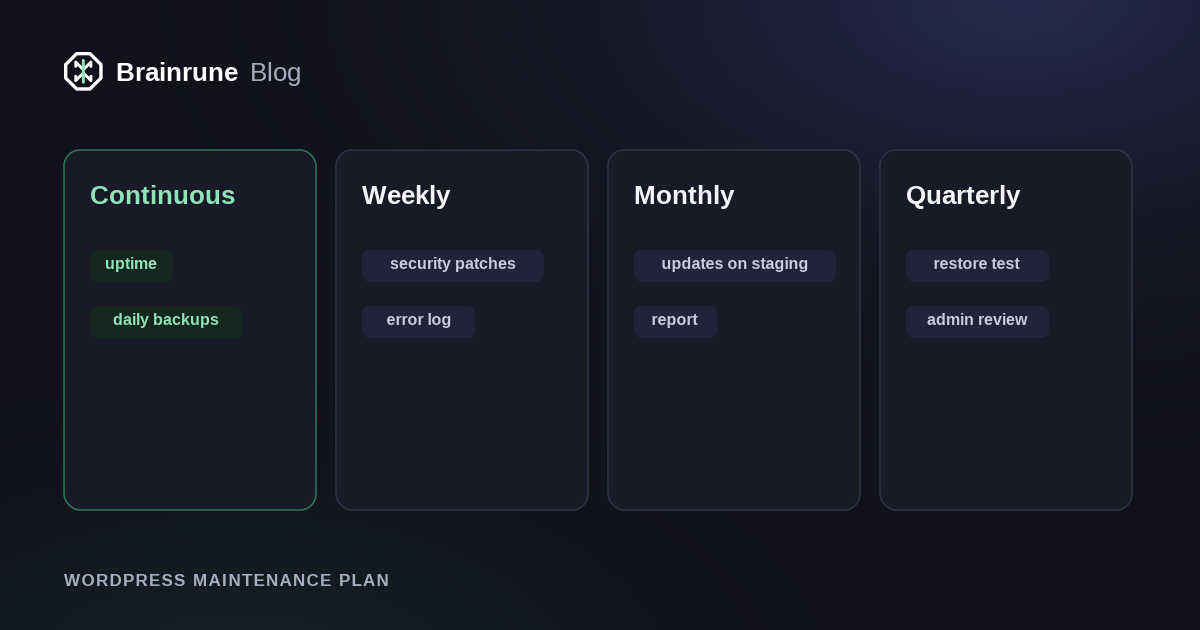
| Frequency | Tasks |
|---|---|
| Continuous | Uptime and checkout monitoring, login protection, off-site daily backups |
| Weekly | Security patches after a quick check, vulnerability alerts reviewed, error log review |
| Monthly | Full update cycle on staging then live, database cleanup, broken link and form check, report |
| Quarterly | Restore test from backup, review of admin users and plugins, PHP version review |
| Yearly | License renewals, hosting review, domain and SSL renewal check |
What is not WordPress maintenance?
Maintenance keeps the existing site working. New features, redesigns, new landing pages, writing content, SEO campaigns, migrations to another platform and custom development are separate projects. A clear plan says this upfront, so a request for a new page does not quietly eat the hours meant for updates and backups.
Some grey areas are worth agreeing on in writing:
- Fixing what an update broke: should be included. That is the reason for the plan.
- Bugs inside a third-party plugin: a workaround or rollback is maintenance, rewriting the plugin is not.
- Small content edits: often included in limited minutes, but they are a convenience, not maintenance.
- Hosting problems: the plan can diagnose them, but the host fixes the server.
How to choose a maintenance plan
Ask every provider the same questions: where are backups stored, when was the last restore test, are updates tested on staging, who gets the alerts, and what does the monthly report look like. Vague answers to those five usually mean the plan is mostly “Update all”.
If you are not sure what state your site is in today, start with a free store audit. If you want the routine above handled for a WooCommerce store, our WooCommerce maintenance plans include staging updates, off-site backups with restore tests, monitoring and a monthly report.