 Rebuild or move




 Romana
 Deutsch
 Français
Category pages are the pages most likely to rank for the searches that bring buyers to a store, like “trail running shoes” or “leather phone cases”. Yet on most WooCommerce stores they are a title, a grid of products and nothing else. Google has little to read, filters create thousands of near-duplicate URLs, and page two of every category competes with page one.
This guide covers the parts of category page SEO you control in WooCommerce: titles and meta descriptions, text above and below the products, filters and URL parameters, canonical tags, pagination and internal links.
Key takeaways
- Give each category its own title tag and meta description. Do not rely on a sitewide template alone.
- Put a short intro above the products and a longer, useful section below them.
- Keep filter and sort URLs out of the index unless a filter is a real search target.
- Paginated pages each get their own URL and their own canonical, not page one’s.
- Link categories from menus, breadcrumbs, the home page and related blog posts with plain
<a href>links.
Why do category pages matter for WooCommerce SEO?
Category pages match the broad commercial searches shoppers type before they pick a product, such as a product type plus a material or brand. They collect internal links from menus and products, so they often hold more authority than single product pages. Google also uses them to find products, because category pages link down to every item.
Google’s guide on ecommerce site structure says category pages should link directly to every product in the category, or Googlebot might not find all products by crawling. It also notes that Google generally does not use URL structure to work out site structure. Links do that job.
In short, a weak category page hurts twice: it ranks poorly itself, and it passes less value to the products under it.
How should you write category titles and meta descriptions?
Write a title tag for each category that names the product type the way shoppers search for it, adds one useful qualifier, and ends with the brand. Write a unique meta description that says what the range covers and why to buy here. Templates are fine as a fallback, but your top categories deserve hand-written versions.
Google’s meta description guidance says identical or similar descriptions on every page are not helpful when individual pages appear in search results. A template like “Shop {category} at Store” produces exactly that. Compare:
| Template | Written | |
|---|---|---|
| Title | Running Shoes Archives – Store | Trail Running Shoes for Men and Women | Store |
| Meta description | Shop Running Shoes at Store. | Trail running shoes with grippy soles and waterproof options. Sizes 36 to 47, free returns within 30 days. |
| H1 | Running Shoes | Trail Running Shoes |
Keep the H1 short and close to the main search term. Only promise what the page shows: if the meta description mentions free returns, the store must offer them. In WooCommerce, the default category title often ends in “Archives” because of the theme or SEO plugin template. Check yours in the page source.
Where should category text go: above or below the products?
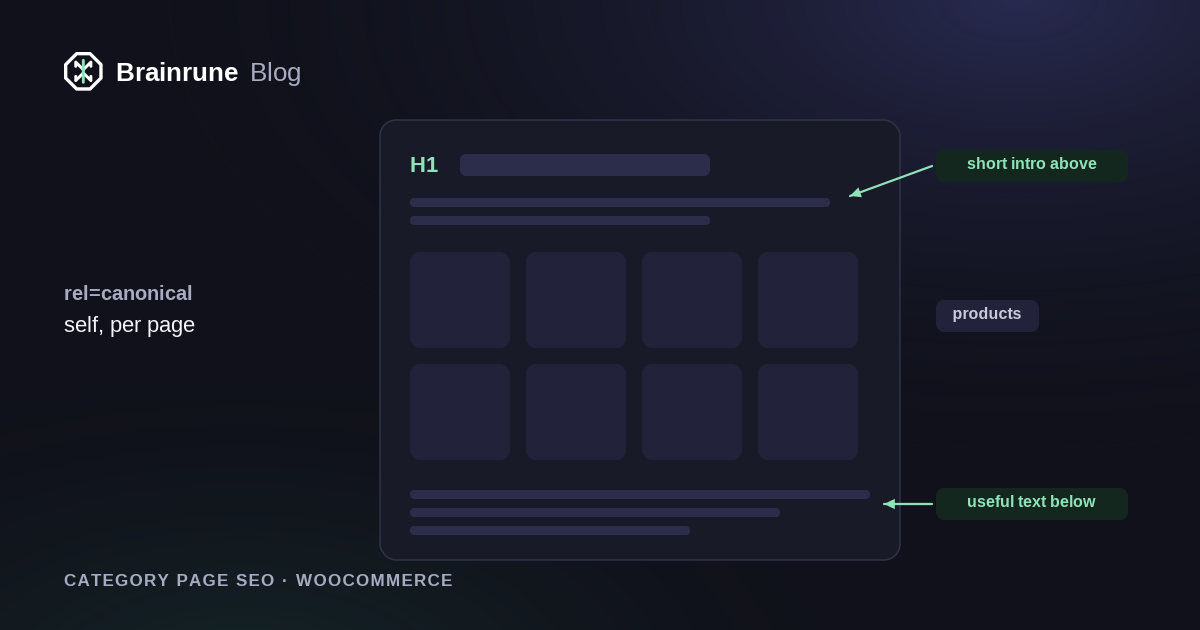
Put a short intro of one to three sentences above the products, so shoppers see products right away and Google sees the topic. Put the longer text below the product grid: buying advice, size or material differences, links to subcategories and answers to common questions. Never push the first row of products below the fold with text.
A layout that works on most stores:
- H1 and short intro. What the category contains, in plain words.
- Subcategory links, if the category has children.
- Product grid with filters.
- Buying guide below the grid. Two to five short sections with H2 or H3 headings.
- FAQ with real questions from customers or support emails.
WooCommerce only has one description field per category, and most themes print it above the products. To place text below the grid you need a second field, a theme hook, or a plugin such as our Category SEO Editor for WooCommerce, which adds a bottom description, per category title and meta, and FAQ for each category.
Write text that helps someone choose. “We offer the best shoes at great prices” helps nobody. “Choose a 4 to 6 mm drop if you are moving from road shoes” does.
How do you handle filters and URL parameters on category pages?
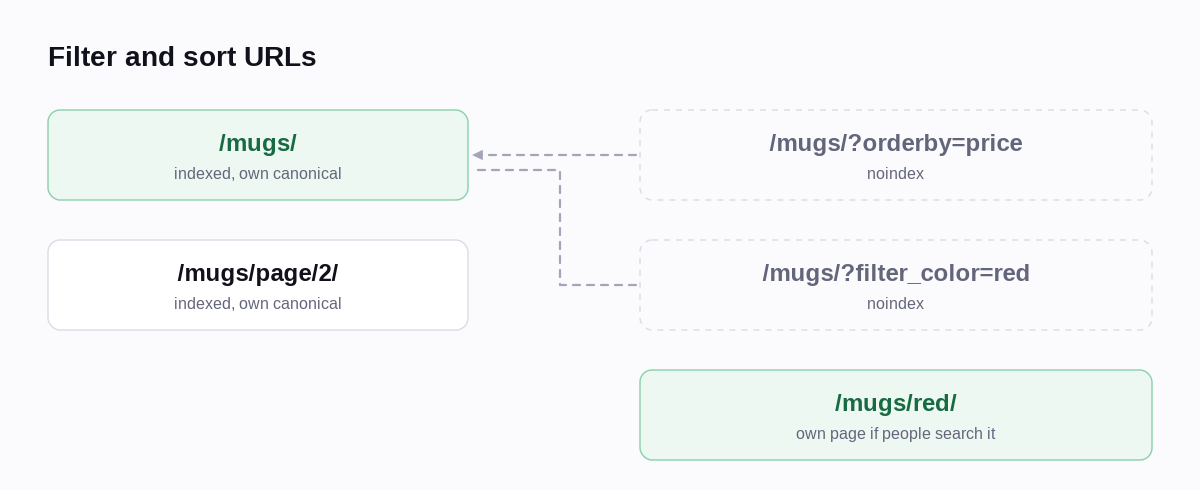
Most filter and sort URLs should not be indexed, because each one is a near copy of the category. Block crawling of filter parameters you never want in search. If a filter matches a real search, such as a brand or color with its own demand, turn it into a proper subcategory with its own URL and text.
Google’s page on managing faceted navigation suggests using robots.txt to disallow crawling of filter URLs when you do not need them in search, and notes that canonical tags and nofollow are generally less effective in the long term. Typical WooCommerce parameters to review:
| Parameter | Source | Recommended handling |
|---|---|---|
?orderby=price |
Sort dropdown | Canonical to the clean category URL, or disallow in robots.txt |
?filter_color=red |
Layered nav widgets and filter plugins | Disallow, unless the filter is turned into a subcategory |
?min_price= and ?max_price= |
Price filter | Disallow |
?add-to-cart=123 |
Add to cart links | Disallow |
/page/2/ |
Pagination | Keep crawlable, self canonical |
Before you add a robots.txt rule, check in Search Console that the URLs are not already your ranking pages. Blocking a URL that ranks will drop it.
What canonical tag should a category page use?
A category page should use a self-referencing canonical: the clean category URL, with no parameters. Sort and tracking parameters can point their canonical to that clean URL. Paginated pages are the exception: page two points to page two, not page one. Make sure only one tool outputs the canonical tag, usually your SEO plugin.
Common canonical problems on WooCommerce:
- Two canonical tags on the page, one from the theme and one from the SEO plugin.
- Canonicals that keep
?orderbyor UTM parameters. - Products in several categories with category paths in the product URL, creating several URLs per product.
- Category base changes after launch without redirects from the old paths.
How should WooCommerce category pagination work for SEO?
Each paginated page needs its own URL, such as /category/shoes/page/2/, with a canonical pointing to itself and normal links to the next and previous pages. Do not set page one as the canonical for the series, and do not noindex deep pages if they are the only path to older products.
Google’s guide on pagination and incremental loading says not to use the first page as the canonical for a paginated sequence, to give each page a unique URL, and notes that Google no longer uses rel="next" and rel="prev". If your theme uses infinite scroll or a “load more” button, make sure real paginated URLs still exist behind it, linked with <a href>.
How do internal links help category pages rank?
Internal links tell Google which pages matter most and help it reach every product. Link each category from the main menu, from breadcrumbs on its products, from the home page if it is a top seller, from related subcategories and from blog posts on the same topic. Use plain links with descriptive anchor text.
Google’s ecommerce structure guide recommends standard <a href> links rather than JavaScript click events, because Googlebot generally does not run searches or click buttons on your site. A short internal linking checklist:
- Menu: top categories linked from every page.
- Breadcrumbs: Home, category, subcategory, product, with BreadcrumbList structured data.
- Category text: links to subcategories and closely related categories.
- Products: link back to their main category, not to every category they belong to.
- Blog: guides link to the category that sells what they describe.
Category page SEO checklist
- Unique title tag and meta description for every important category.
- H1 matches the main search term.
- Short intro above the products, useful guide below.
- Subcategories linked from the parent category.
- Filter and sort parameters disallowed or canonicalized.
- Self-referencing canonical on the clean URL, only one canonical tag.
- Paginated pages with unique URLs and their own canonical.
- Breadcrumbs with structured data.
- Empty categories noindexed or hidden until they have products.
- Category URLs listed in the XML sitemap.
If you want a second opinion on your categories, our WooCommerce technical SEO service covers filters, canonicals and pagination along with the rest of the store. You can also start with our free store audit.
Frequently asked questions
How much text should a WooCommerce category page have?
Enough to help someone choose, and no more. A short intro above the products plus a few short sections below usually works. Text written only to reach a word count rarely helps rankings.
Should I noindex WooCommerce filter pages?
For most filters, yes, or block them from crawling. Keep a filter indexable only if it matches real search demand, and then give it its own clean URL, title and text, like a subcategory.
Should page 2 of a category canonical to page 1?
No. Google advises against using the first page as the canonical for a paginated series. Each paginated page should have its own URL and point its canonical to itself.
Can a product belong to several categories without SEO problems?
Yes, as long as the product has one URL. Avoid product permalinks that include the category path, and set a primary category so breadcrumbs and internal links are consistent.
Do empty categories hurt SEO?
Empty categories are thin pages that offer nothing to searchers. Hide them from menus and keep them out of the index until they have products, then make them indexable again.